Track decisions and action items
Once a vote closes and minutes publish, Decidesk keeps the trail open — the decision, the action items it spawned, who owns them, and whether they got done.
Goal
By the end you will know how to find a decision, see and update the action items linked to it, and read the completion-rate and engagement figures Decidesk derives from them.
Prerequisites
- At least one published decision (see Run a vote) and ideally minutes with extracted action items (see Take and publish the minutes).
- For updating an action item's status: being its assignee, or having edit rights on the body's work.
Steps
-
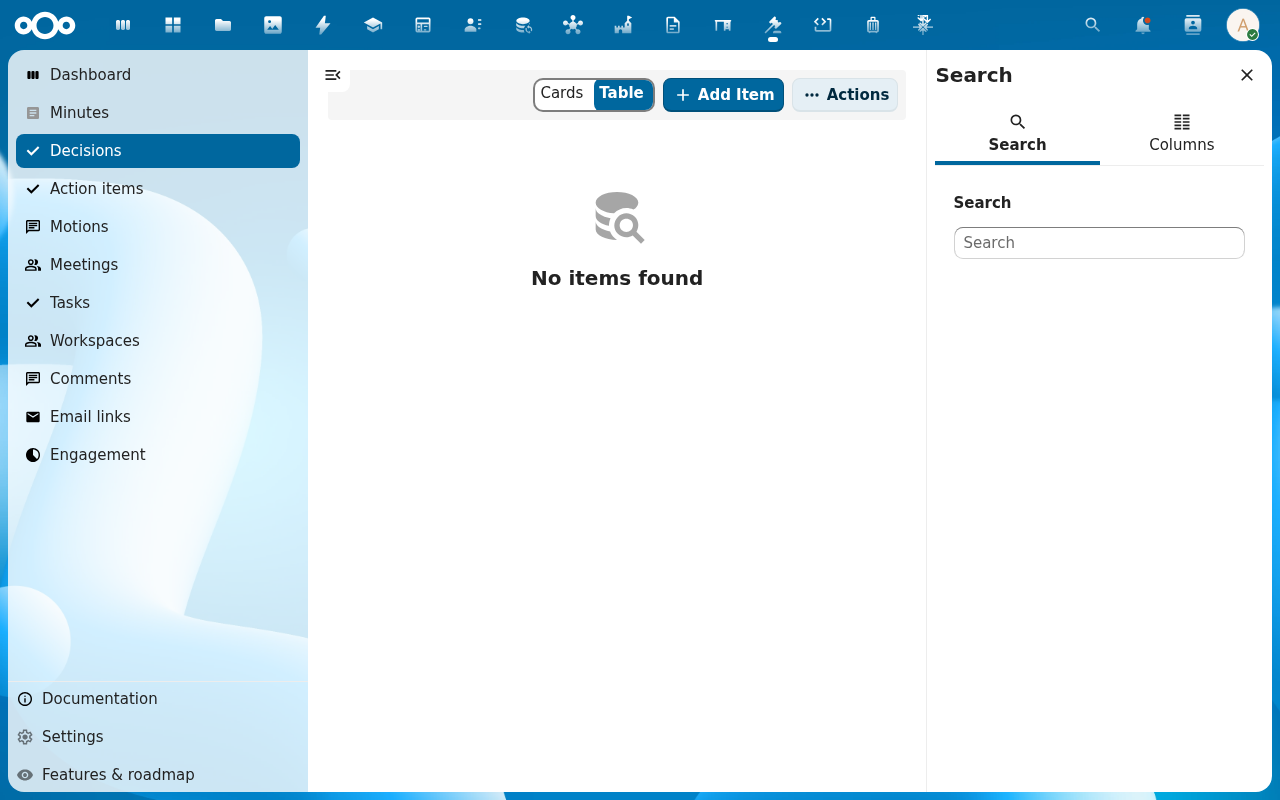
Open Decisions in the navigation. Each row shows the decision title, outcome (carried / rejected), decision date, and publication status; a Publish action handles any decision still pending publication.
-
Open a decision. Its sidebar has an Overview (the motion text, the tally, the legal basis), an Action items tab, and an Audit trail.
-
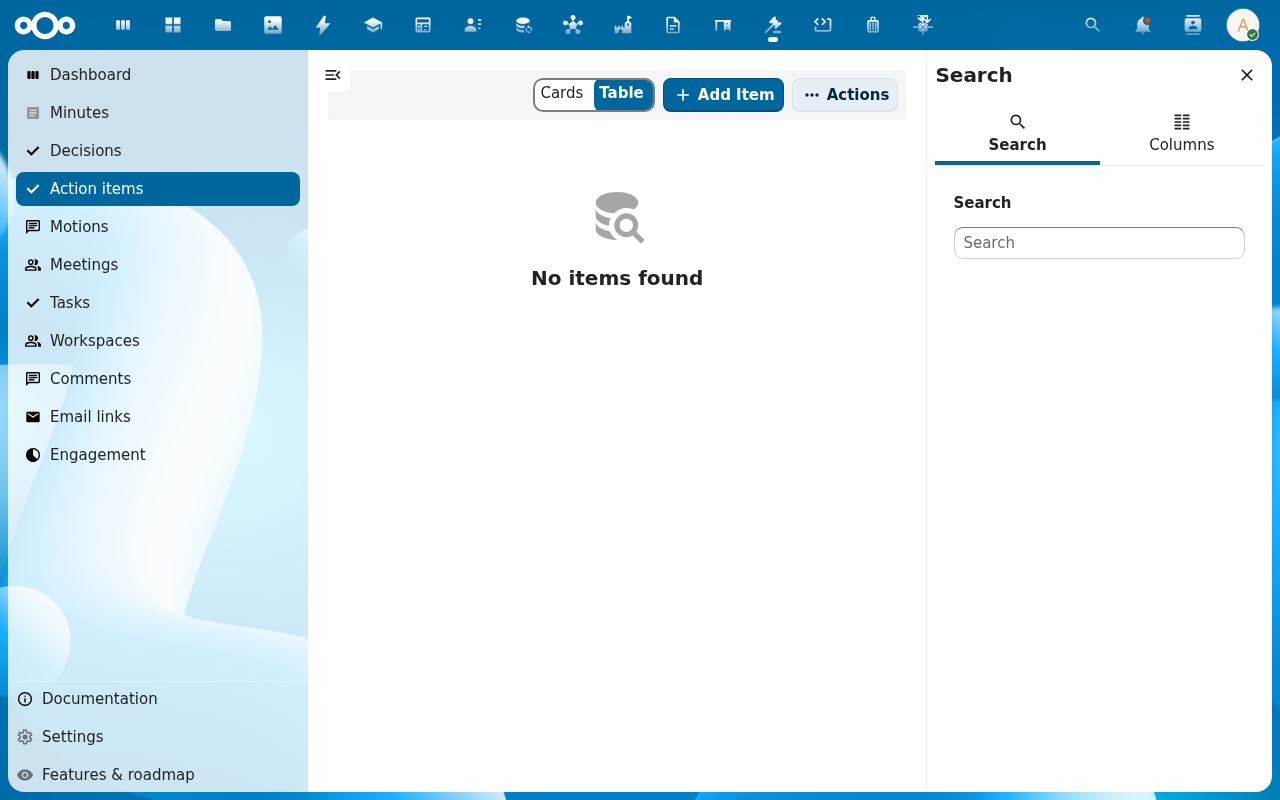
On the Action items tab — or under Action items in the navigation — see what the decision committed someone to: a title, an assignee, a due date, and a status (open, in progress, done). The assignee updates the status as the work moves.
-
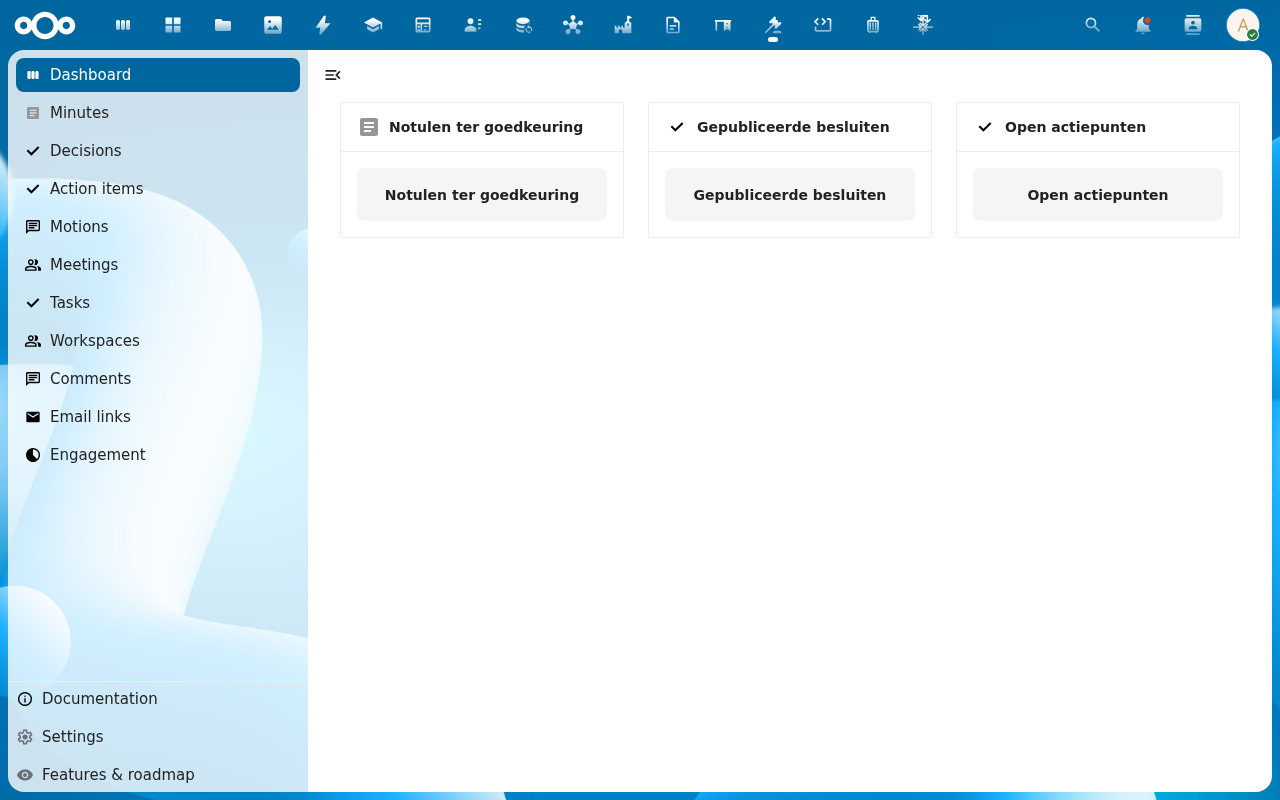
Back on the dashboard, the Open action items tile counts everything still open or in progress; the action-item analytics give completion rates per body and a my items view of what's assigned to you.
-
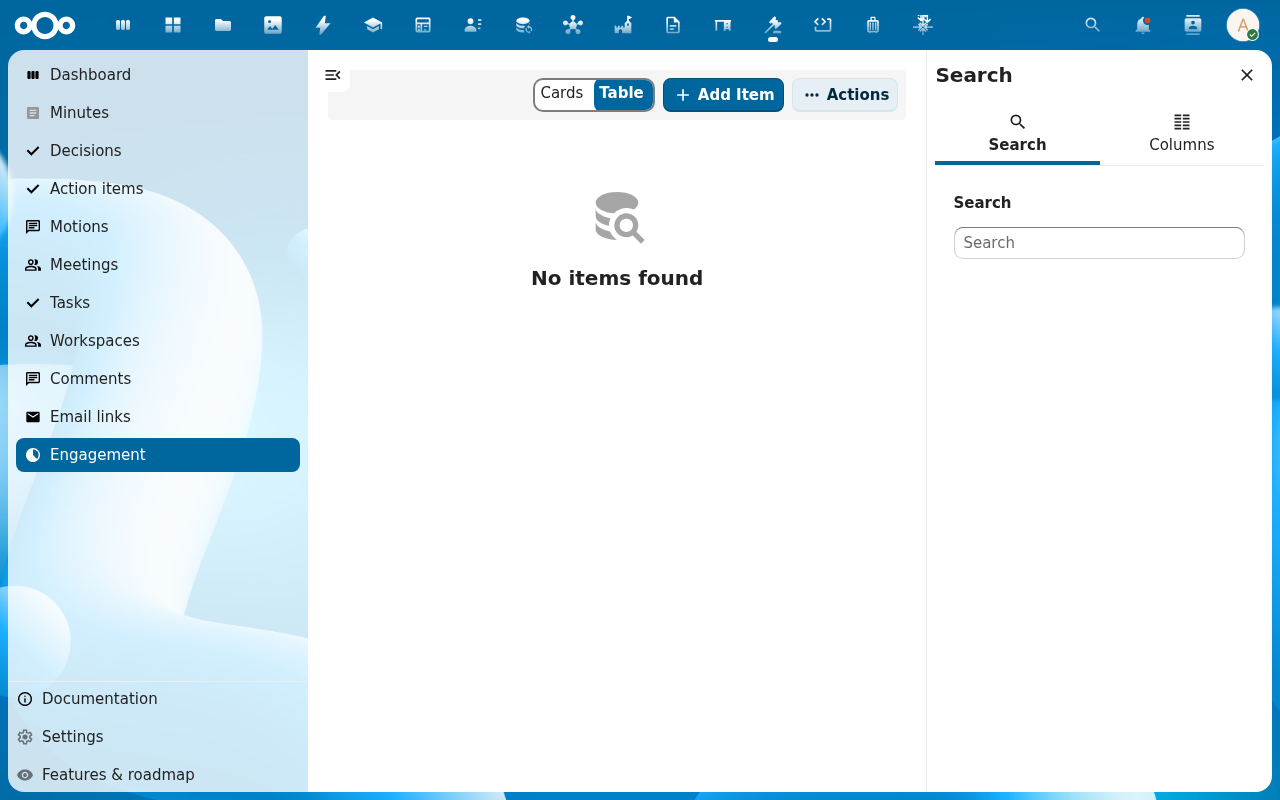
Check Engagement for the meeting-level figures Decidesk derives — speaking time and an engagement score per participant — and Tasks for delegated follow-ups that aren't formal action items.
Verification
A published decision shows in Decisions with its outcome, its Action items tab lists the linked items with assignees and statuses, and the dashboard's Open action items tile and the completion-rate figures move when you mark an item done.
Common issues
| Symptom | Fix |
|---|---|
| A decision shows as not published | Use the Publish action on the Decisions list — publishing enforces the body's access rules server-side. |
| An action item has no assignee | Edit it and set an assignee, otherwise it won't show in anyone's my items and the completion rate can't account for it. |
| Completion rate looks wrong | It only counts action items with a status set — items left in the default state skew it; make sure assignees keep statuses current. |
| Engagement figures are empty | Engagement records are written from the live meeting (speaking turns); a meeting run without the live view won't have them. |
Reference
- Run a vote — where decisions come from.
- Take and publish the minutes — where most action items are extracted.
- Ask the AI companion about a meeting — ask "what action items are due this week?" instead of clicking through.