Configure a governance workflow
A governance body in Decidesk is the thing that meets and decides — a board, a council, a general assembly, a working group. Its workflow is the set of rules Decidesk enforces for its meetings: quorum, majority, co-signature threshold, and which roles may schedule meetings, submit motions, and operate votes.
Goal
By the end you will have a governance body in Decidesk with a type, a domain, term dates, and the workflow rules that its meetings, motions, and votes will follow.
Prerequisites
- The Decidesk and OpenRegister apps installed and enabled, with the Decidesk register imported (see Manage Decidesk settings).
- Admin (or whoever your organisation appoints) — creating governance bodies and setting workflow rules is an administrative act.
- A clear picture of the body's actual rules of order (quorum, majority threshold, co-signature requirement, term length).
Steps
-
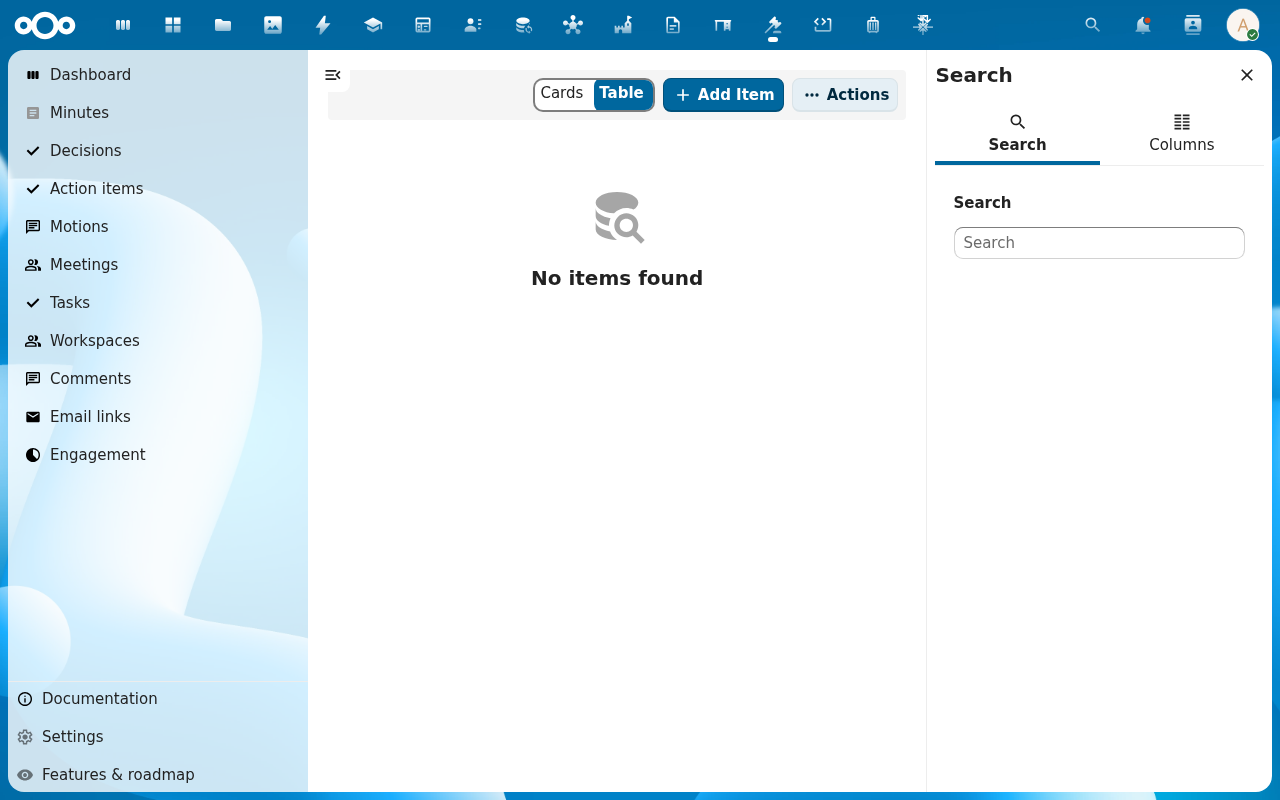
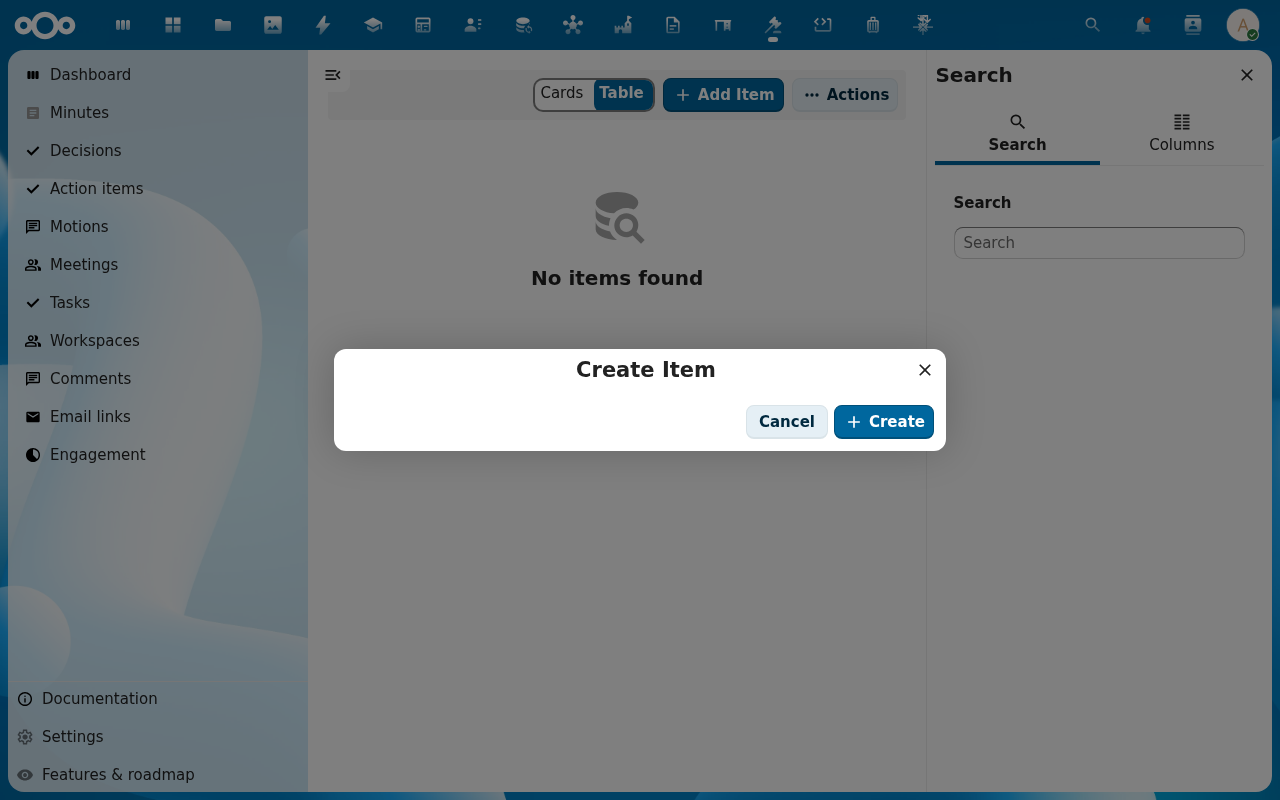
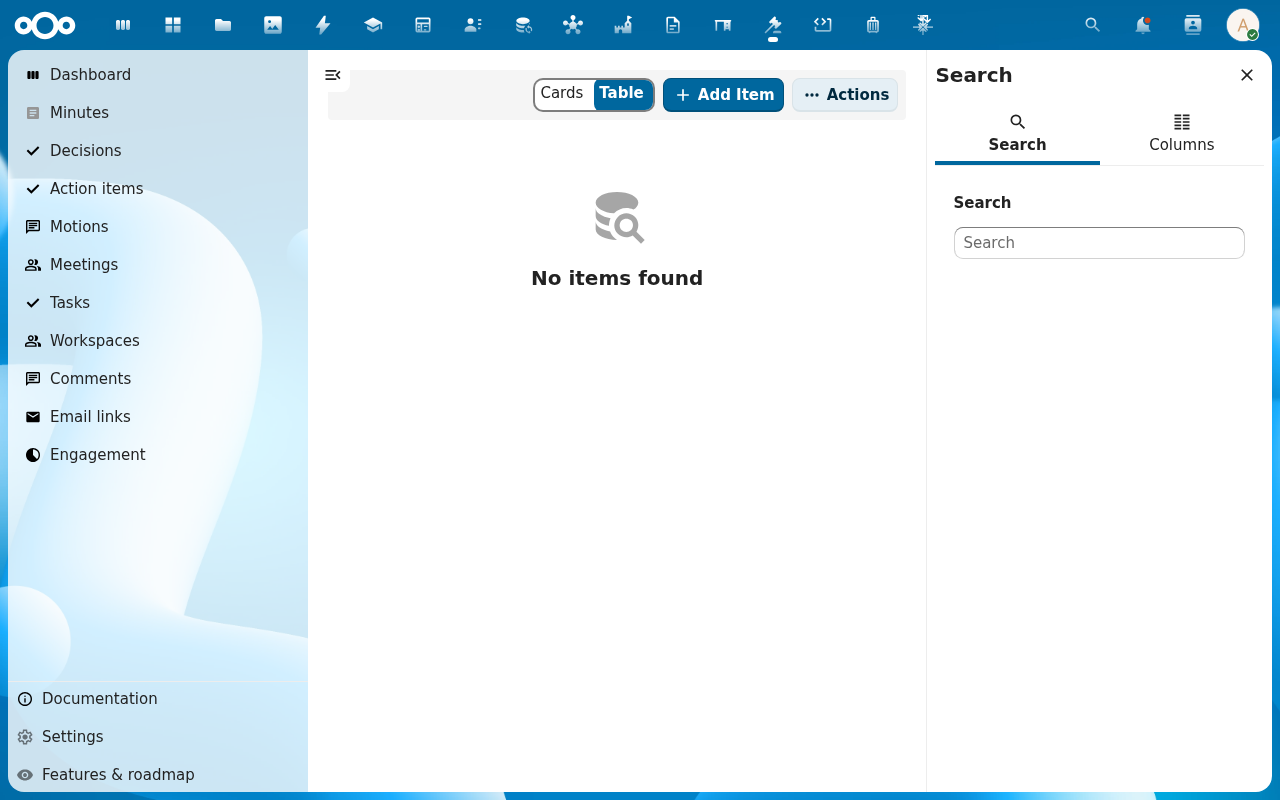
Go to Governance bodies (under the Decidesk navigation) and click Add Item. The Create Item dialog opens.
-
Fill in the body — name, body type (board, council, ALV/general assembly, committee, …), domain (the area it governs), and term start / term end. Click Create.
-
Open the body. Its sidebar has an Overview, a Members tab, and an Audit trail. The Overview is where the workflow rules live — quorum, majority rule (simple, absolute, two-thirds, …), and the co-signature threshold for motions.
-
Set the rules to match the body's rules of order. These feed straight into the app: the quorum is checked when a voting round opens, the majority rule decides whether a motion carries, and the co-signature threshold gates a motion's admissibility.
-
Add members on the Members tab and give each a role (see Manage members and roles) — roles are what let someone schedule a meeting, submit a motion, or operate a vote for this body.
Verification
The body shows under Governance bodies with its type and domain, its Overview shows the quorum / majority / co-signature settings you entered, and a test meeting created against the body enforces them (e.g. opening a voting round flags quorum, a motion needs the threshold of co-signatures). The Audit trail records the body's creation and any rule changes.
Common issues
| Symptom | Fix |
|---|---|
| Add Item opens an empty dialog | The governance-body schema isn't imported — re-run Settings → Registers → Re-import configuration (see Manage Decidesk settings). |
| Motions on this body never need co-signatures | The co-signature threshold is 0 — set it to the number the body's rules require. |
| Quorum warning never appears | Quorum is unset or 0 — set the body's quorum so the check has something to compare against. |
| A member can't schedule a meeting for the body | They don't have a role that grants meeting-scheduling rights — adjust their role on the Members tab. |
Reference
- Manage members and roles — assign chair / voting rights / secretary on this body.
- Manage Decidesk settings — the register import these schemas depend on.
- Schedule a meeting and build the agenda — what a member does once the body exists.